The New PC Tune-Up – 11/29/21. How exciting! You got a new computer for Christmas. It’s sleek, shiny, and so much faster than what you had before. That’s great, but it doesn’t mean you should leave it untouched. This article shares several steps you might take to secure your data and keep that new device in tip-top shape.
First things first. Before even logging into personal email or other top sites, you’ll want to update the operating system (OS). Yes, most computers come out of the box with Windows, but you can’t know when that item was boxed. There could be important updates that you don’t want to miss.
You’ll also want to install the latest drivers during your tune-up. Different hardware on your computer can need specialized drivers from the manufacturer. Gamers, for instance, may want to ensure they download the latest to boost performance.
While you’re doing all this uploading and upgrading, also look to remove junk that may have come on the computer. It’s no longer as common, but manufacturers can reduce cost to the consumer by pre-installing software.
You might not have any need for the tools that come already installed. Meanwhile, they slow down your computer. Remove the clutter to improve your computer’s processing. Head to your PC’s Control Panel and look to uninstall programs and utilities that you don’t want. Be careful, though. Just because you don’t know what it is doesn’t mean it’s not serving a valuable purpose.
Starting out on a new computer is also a great time to set up the free software. For many of us this includes:
Google Chrome – the internet browser;
Skype – for instant messaging, voice and video calling;
VLC – a multimedia player;
FoxIt Reader – to create, edit, sign, and secure PDFs;
7Zip – used for archiving files.
Involving an IT expert for Your Tune-Up
If you had a great sales experience, you may not want to seek IT help with your new computer. Still, it can prove useful.
Your new computer may also need BIOS updates during your tune-up. Again, the hardware was current when your computer was boxed up but may be lacking the latest by the time it gets to you. A note of caution: this is not an update to do alone. BIOS updates don’t add new features, security patches, or performance improvements, but they may fix a bug with a piece of hardware or add support for your central processing unit (CPU). These updates can be risky if done incorrectly, so work with an IT tech.
Talk also with an IT tech about the best data backup plan for your needs. You’ll be creating important documents, downloading sensitive data, and uploading valued images. Don’t risk their security by failing to back up.
IT support will also suggest the best security tool for you to use to protect against malware. With so many free and fee-based third-party alternatives to Windows Defender, you may want help deciding on the best one.
We’re here to help you get the most out of your new computer. Or, if you’re not sure yet which one to buy, we can consult with you on that, too. Contact us today at (651) 456-8655 or visit our Contact page!
DIY Computer Repair: Don’t Do It! – Most people like to take a shot at fixing things something themselves. With some things that works out great, but when it comes to do-it-yourself computer repair, it’s probably not worth the effort. This article shares some of the things to consider before trying to do that repair solo.
#1 Computers are complicated
Computer developers put a lot of work into making it easy for you to use your computer. A good user experience is part of the appeal for one brand over another. But that doesn’t mean that what’s going on inside the actual device is simple to fix.
There are a lot of complicated connections “underneath the hood” of your laptop or desktop, and prying the device open to see if you can do a DIY repair could prove disastrous. It’s going to be safer to turn to a trained repair tech instead.
#2 You could make things worse
Maybe you’ve done this around the house when trying to be “handy.” That leaky faucet becomes a full-blown broken fixture thanks to your efforts.
You might think that you can watch a YouTube video and do an amateur fix, but know that just hitting the wrong key combination could create a different problem. Digging into the backend of your programs could change something for the worse.
Tip: If you do try to fix something solo, don’t erase your history. It could be important for the tech expert to retrace your steps to figure out where you went wrong.
#3 You risk being scammed
Bad guys are always finding ways to exploit people, and there are scams out there that appear to be repair assist programs. You may be looking for a fix but instead you click on a link that installs malware on your device. Now, you’ve got another problem to deal with!
#4 You could lose your valuable data
We store a lot of our lives on our computers or smartphones these days. If you attempt to fix your device without first backing up your files, media, and other data, you could lose it all.
#5 It may not be worth it
It’s not that difficult to find a reasonably priced computer today. You may end up paying for expensive repairs for an old computer when you could have bought new. Take your computer to a fix-it shop. You’ll get expert input into whether your device is worth the time, effort, and money to repair before you go too far down that road.
Choosing the right repair service
With age comes the wisdom to ask for help when we need it. Regrettably, not all repair services are as reliable. When looking for computer fix-it help, read reviews, and check credentials and service guarantees.
Don’t hesitate to contact our IT experts for your computer repair needs. You have your skills, we have ours. Let us do the hard work and keep your devices ship shape for you. Contact us now at (651) 456-8655 or visit our CONTACT page.
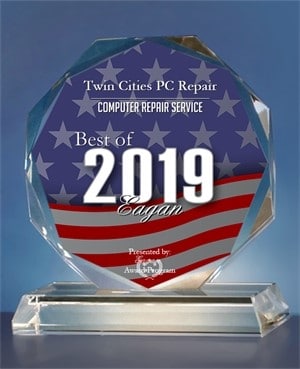
Twin Cities PC Repair Receives 2019 Best of Eagan Award
Eagan Award Program Honors the Achievement
Patrick Jensen (Owner)
EAGAN October 14, 2019 — Twin Cities PC Repair has been selected for the 2019 Best of Eagan Award in the Computer Repair Service category by the Eagan Award Program.
Each year, the Eagan Award Program identifies companies that we believe have achieved exceptional marketing success in their local community and business category. These are local companies that enhance the positive image of small business through service to their customers and our community. These exceptional companies help make the Eagan area a great place to live, work and play.
Various sources of information were gathered and analyzed to choose the winners in each category. The 2019 Eagan Award Program focuses on quality, not quantity. Winners are determined based on the information gathered both internally by the Eagan Award Program and data provided by third parties.
About EAP
The EAP is an annual awards program honoring the achievements and accomplishments of local businesses throughout the Eagan area. Recognition is given to those companies that have shown the ability to use their best practices and implemented programs to generate competitive advantages and long-term value.
The EAP was established to recognize the best of local businesses in our community. Our organization works exclusively with local business owners, trade groups, professional associations and other business advertising and marketing groups. Our mission is to recognize the small business community’s contributions to the U.S. economy.
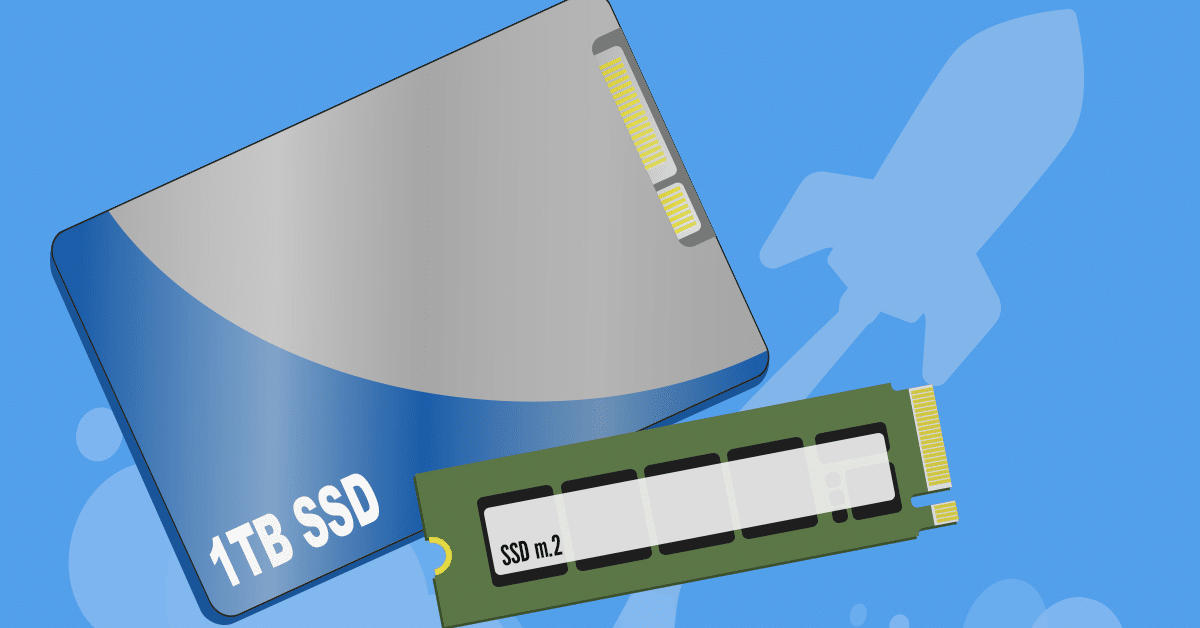
The solid-state drive (SSD) has swiftly become the go-to upgrade to breathe new life into an aging computer, and for good reason too. An SSD swiftly brings an old laptop or desktop up to date with modern machines in just a single step.
Patrick Jensen (Owner)
The price of solid-state memory has fallen dramatically in recent years. As costs have dropped, the popularity of the technology has increased exponentially. At one time an SSD was a rare treat for serious PC enthusiasts, now it’s cheaper and more readily available than ever. No other single solution is as cost-effective, quick to swap, and impressively effective as swapping out an old hard drive in favor of the faster and more modern SSD.
Out with The Old
The hard disk drive (HDD) is a technology that dates back as far as the 1950s. They became the default solution all PCs would use for decades to come. Most old laptop and desktop machines still contain their original, worn hard drives they left the factory with.
The HDD was a mostly mechanical device. Inside a solid outer casing was a series of spinning disks arranged in a delicate stack known as a platter. Each disk could read and save data using a tiny needle moving across the disk’s surface.
The technology looked and worked much like a miniature record player. Like a record player, widely in use at the time that hard drives were developed, the hard drive had some serious drawbacks in their use.
The series of tiny disks and needles that made up the HDD were incredibly fragile. Vulnerable to dust or movement, computers commonly succumbed to hard drive failures that rendered the machine and its stored data unusable. Occasionally, simply moving a laptop while reading or writing data can damage a hard drive’s spinning disk.
In with The New
The primary reason to switch to a more modern SSD, on top of their impressive durability, is the incredible increase in speed. The SSD has no moving parts at all, working more like a digital camera memory card than a vinyl record player.
An SSD simply makes the process of retrieving and saving data to storage many times faster. Eliminating the mechanical component, removing the need to move a physical disk, and not needing to physically pick up the data means a much faster and smoother operation.
Computer startup, where the operating system loads all its data from storage, can take as little as one-quarter of the time of a comparable HDD. Additionally, loading regular applications and data from an SSD takes a fraction of time of an HDD.
An SSD completely breathes new life into an old machine. Computers with an SSD replacement for the hard drive feel like using an entirely new machine for a fraction of the cost.
Replacing the main mechanical component additionally eliminates wear and tear working to break down your machine. While an HDD slows over time, degrades, and can eventually suffer mechanical failure; an SSD remains as durable as the day it was purchased.
Ideal Laptop Upgrade
In a laptop setting, the SSD makes complete sense. They require less power than older hard drives, making the most of your battery charge.
In addition, not needing a large disk platter, mechanical parts, or protective outer case means they are about half the weight of a mechanical drive. Making an old machine lightweight brings it another step closer to a modern machine.
They run almost silently too. The familiar click-clack of the hard drive inside a laptop is a thing of the past. Many users comment on the noise their laptop used to make starting up and loading programs. Noisy laptops are a tech throwback we’re happy to leave behind.
For many who feel like their old laptop or desktop is showing its age, the prohibitive cost of purchasing a whole new machine keeps them invested in their old one. A simple, fast SSD upgrade can make your old machine new again at a much smaller price. If swapping long startups, and slow load times sounds right for you, consider upgrading to an SSD. You won’t look back.
We know computers always break at the worst possible time, but what exactly prompts that failure? It’s easy to think it was something you did since you were using it at the time, but while your online gaming frenzy might cause a temporary crash, normal user actions are rarely the cause of a broken computer.
Physical Damage
Accidents happen, but they don’t always mean you need to buy a new computer. As an electrical item, liquid spills are a big problem. This could be anywhere from a spill on the keyboard, going overboard with the screen cleaning spray or even a flood that reaches the computer. Laptop users need to be especially careful when choosing their work surface, as cafes and kitchen tables often have small puddles left behind. If you’re lucky and the liquid didn’t fry the circuits, ongoing corrosion is still likely, as is stickiness to gum up the internal parts. Similarly, a dropped computer isn’t going to be happy, nor is one that’s been knocked around. Even a light thump of frustration can cause loose cables, disconnections and internal damage.
Age
Computer parts have an expected lifetime, especially moving parts like fans or mechanical hard drives. Some computers can run 24/7 for up to a decade, while others can be barely used but fail within warranty. When age is the issue there are usually early warning signs like extra noise or slowing down, but the actual ‘break’ generally happens when you go to turn the computer on, perhaps after a crash or overnight – either it makes a valiant effort before giving up, or nothing happens at all. Sometimes lasting age is the luck of the draw with how it was manufactured, and quality does play a big part in how long it can keep churning.
Power Surges
We like to think electricity is a constant stream that never varies, but computers are particularly sensitive to both surges (too much electricity) and brownouts (not enough electricity). You might notice the lights dimming or flickering during a brownout, or glowing just a tad too strong during a surge. These variations never last long, and they’re not something you can control unless it’s just your house (it’s worth checking with your neighbors), but they can easily break your computer. A surge protector can guard against mild increases in voltage, but brownouts and strong surges will still cause damage.
Heat
Overheating is a big contributor to premature computer death. Some computer parts run hot and need plenty of cooling to keep them working. You might not feel it from the outside, but internal components can rapidly build up heat that needs to go somewhere. When your airflow vents get blocked with dust or pet hair, the temperature continues to increase until components literally bake themselves to failure. At set temperatures, the computer will automatically switch off to try and cool down, however the more often this happens and the higher the temps, the more likely your computer is to die.
Hard Drive Failure
Your data is stored on a hard drive, and if you’ve got a mechanical hard drive (most people do), it works a bit like a record player with a spinning ‘platter’ and a needle that reads it. Small bumps, liquid, age, surges and overheating can all trigger hard drive failure. Along with making your computer unusable, hard drive failure means your data is also lost. While sudden breakage might leave you surprised, take note of any strange noises or repeated crashes and back up your data in advance.
Like a car, your computer needs to be serviced too. We can check your computer, both hardware and software, to make sure it’s running right and working its best for you. Give us a call at (651) 456-8655 or visit our contact page HERE.
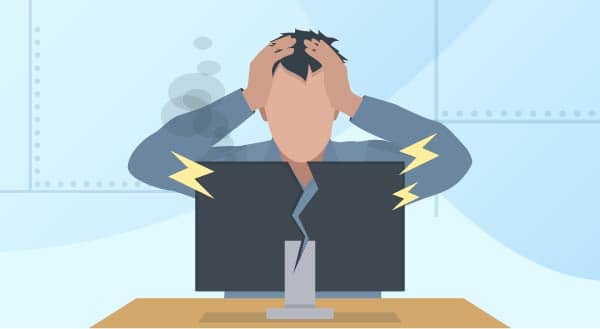
It’s pretty obvious when your computer is already broken, but how do you know when it’s about to break? Even before it falls into a heap and refuses to turn on, or flashes big messages about how your files are now encrypted, you’ll be given multiple hints that something is wrong. Here are the common signs your computer needs repair, sooner rather than later.
It’s running slow. Most people assume their computer is running slow because it’s getting older, but it could actually be a variety of reasons. A program behaving badly, a virus, overheating or even a failing hard drive can all cause a massive slow down. You might only notice it when booting up or starting a program, or the problem may have taken hold to the extent that even moving your mouse becomes torture. Sometimes the slow speed is simply due to some newer software that your hardware can’t keep up with.
Your system is running hot. A very common sign with laptops, running hot can be both the sign and cause of damage. Computers have fans to blow out hot air so they can cool off their internal components. At the same time, fresh air is drawn in through vents to create an effective cooling system. Unfortunately, just about every vent in a computer can quickly become clogged with dust and pet fur, essentially choking off the circulation and leaving components to overheat. Desktop computers have more space inside to circulate air, but you’ll still need to keep their vents clear. You’ll know your computer running too hot if your system shuts down frequently (safety cutout), the fan is working serious overtime, or your laptop is too hot to use on your lap.
Blue Screens of Death are everywhere. A classic Windows error, this is quite literally a blue screen that covers your view. The system will still be running, but something has gone wrong. You’ll be shown some text and an error code, often with Windows suggesting a restart. If a restart fixes your problem, perhaps something didn’t load properly at bootup and your computer had a whoopsie. It’s rare, but it happens. If you’re getting blue screens all the time though, that’s a sign a hardware or software problem needs to be resolved. Your computer will continue to give blue screen errors more and more frequently, so it’s best to take action as soon as you know something’s wrong.
It’s making strange noises. Your computer has a number of moving parts. You’ll know by now which noises it normally makes, from the startup beep to the whirring fan. When your computer starts to make extra noises…that’s when things get interesting. Fans can wear down and screech or grind, hard drives can start clicking, and in emergency cases, you might even hear a zapping noise. None of those are good! Whenever you notice a strange noise, remember your computer parts are all designed to work together and one problem could quickly become many if left unchecked.
It crashes and freezes. If your computer is crashing randomly, restarting without you, or freezing up completely, it’s a sure sign there’s a problem. As annoying as it might be, your computer isn’t doing this to drive you crazy – it just feels that way! You might notice it’s showing other signs from this list too because crashing and freezing are what happens when something isn’t just wrong, it’s terribly wrong. The problem could be almost anything, hardware and software both, but it’s always fixable. This is simply your computer’s final way of crying out for repair, desperately trying to get your attention and a little TLC.
Is your computer doing these things? Let us fix it for you. Call us at (651) 456-8655 or visit our Contact Us page.
We use cookies to ensure that we give you the best experience on our website. If you continue to use this site we will assume that you are happy with it.



Recent Comments