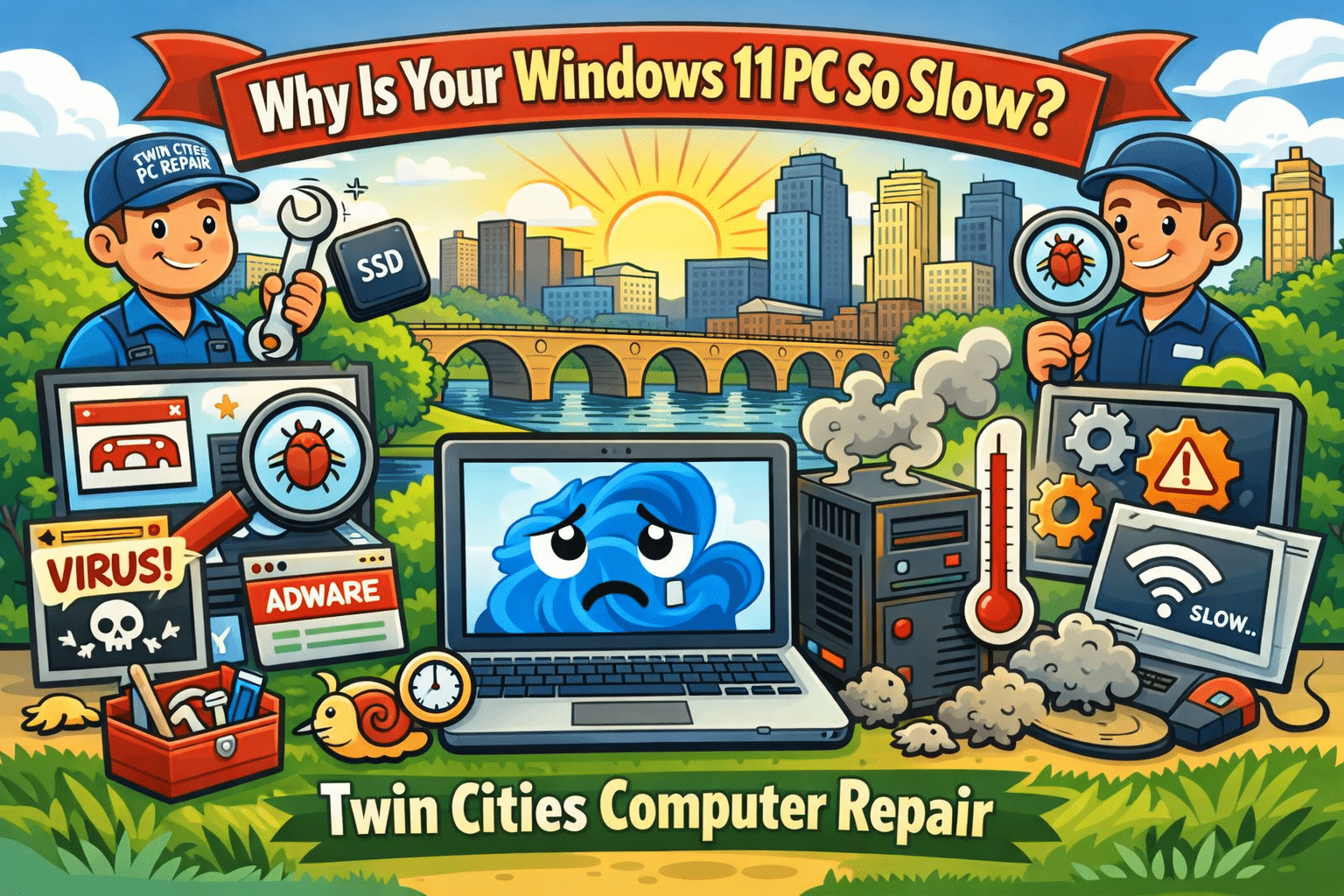
Why Windows 11 PCs Are Suddenly Running Slow (And What You Can Do About It) – 1/26/2026
If your computer has felt slower than usual lately, you’re not imagining it. Across the Twin Cities, we’ve been seeing a surge of customers bringing in Windows 11 desktops and laptops that were “fine last month” but now take forever to boot, lag during simple tasks, or freeze when opening programs. This is one of the hottest and most current computer repair issues right now because it affects everyday users, students, and small businesses alike—especially after recent updates and background security changes.
At Twin Cities PC Repair, we help customers in Bloomington, Richfield, Edina, Burnsville, Eden Prairie, and the greater Minneapolis–St. Paul area get their systems running fast again without losing important files.
Why Your Windows 11 PC Is Slowing Down Right Now
There are a few common causes we’re seeing repeatedly in local repair appointments:
1. Background Updates and “Silent” Maintenance
Windows 11 updates don’t just install once and disappear. Many updates trigger background tasks like indexing, system cleanup, security scans, and driver updates. On older PCs (or even newer ones with limited storage), this can cause random slowdowns, high CPU usage, and long boot times.
2. SSD Storage Filling Up
A PC with a 256GB or 500GB SSD can feel blazing fast—until it hits a storage wall. When your drive gets close to full, Windows struggles to manage temporary files, paging, and system processes. We commonly see machines with less than 10–15% free space, and that alone can make the system feel “broken.”
3. Startup Programs Taking Over
Many popular apps install auto-start services that run the second you turn on your PC. Some are helpful. Many are not. The result is a computer that takes 5–10 minutes to become usable after booting. This is extremely common with systems that have been used for a couple years without a tune-up.
4. Malware and Browser Hijackers (Still a Big Problem)
Even in 2026, malware hasn’t gone away—it’s just gotten sneakier. We’re seeing more cases of:
Fake “Microsoft support” pop-ups
Browser redirects and unwanted extensions
Credential-stealing spyware
Adware that slows everything down
These threats can make your PC crawl, even if you have antivirus installed.
5. Overheating and Dust Buildup
Minnesota weather swings are rough on electronics—especially if a PC is kept near a vent, heater, or dusty area. Over time, dust blocks airflow and your CPU overheats. When that happens, the computer “throttles” performance to prevent damage, causing lag and stuttering.
Quick Fixes You Can Try at Home (Before You Bring It In)
If your computer is still usable, try these steps:
Restart the PC (not shut down—restart forces updates and memory cleanup)
Check storage space and delete large files or uninstall unused apps
Run Windows Security scan and remove suspicious browser extensions
Update drivers (especially graphics + Wi-Fi)
Make sure your PC is ventilated and not clogged with dust
If these don’t help, it may be time for a professional diagnosis.
When It’s Time for a Repair Shop Instead of DIY
Some slowdowns are caused by deeper issues that require hands-on troubleshooting, such as:
A failing SSD or hard drive
Corrupted Windows system files
Bad RAM (random freezes and crashes)
Overheating requiring internal cleaning and new thermal paste
Virus infections that keep coming back
A proper computer tune-up can often restore performance without replacing the whole machine.
Local Computer Repair You Can Trust in the Twin Cities
If you’re tired of guessing, Twin Cities PC Repair can help. We specialize in:
Windows 11 performance tune-ups
Virus and malware removal
SSD upgrades and data transfers
Laptop and desktop diagnostics
Custom PC builds and upgrades
Whether you’re in Bloomington, Minneapolis, St. Paul, Edina, Richfield, Burnsville, or Eagan, we’re here to get your computer running fast again—without the big-box runaround.
If your PC is slow, freezing, or acting weird, don’t wait until it won’t boot at all. Getting it checked early can save your files and prevent bigger repair costs later.
Artificial Intelligence isn’t just a buzzword anymore — it’s becoming part of everyday computing. From Windows Copilot and AI photo editing to smarter antivirus tools and business automation, more people around Bloomington, MN and the Twin Cities are asking the same question: Should I buy an “AI-ready” computer?
AI-ready PCs (sometimes called AI PCs) are built with modern hardware designed to handle AI-powered tasks more efficiently than traditional systems. But like any tech trend, there are real benefits, real risks, and a few downsides you should understand before spending your money.
Below is a clear breakdown of the advantages, safety considerations, and disadvantages of AI-ready computers and hardware — written for local home users, students, and small businesses in the Minneapolis–St. Paul area.
What Makes a Computer “AI-Ready”?
An AI-ready computer usually includes:
A newer CPU with AI-related optimizations
A dedicated GPU (graphics card) for heavy workloads
Or a built-in NPU (Neural Processing Unit), which is designed to run AI tasks efficiently without using as much power as a CPU or GPU
This matters because many AI features (like real-time voice transcription, background blur, image generation, and security scanning) can run faster and smoother when the hardware is designed for it.
Advantages of AI-Ready Computers & Hardware
1. Better Performance for Modern Apps
AI-ready hardware can speed up tasks that used to feel slow or laggy, such as:
Photo editing and enhancement
Video upscaling and rendering
Live captions and voice-to-text
AI tools inside Microsoft Office and Windows
For Twin Cities customers who work from home, run a small business, or multitask heavily, the extra horsepower can make your computer feel “new” for longer.
2. More Future-Proof Than Older PCs
A lot of people in Minnesota are still running older laptops that struggle with Windows 11, new security updates, or modern browsers. AI-ready computers tend to include:
Faster SSD storage
More RAM capacity
Newer Wi-Fi standards
Better battery efficiency (especially on laptops with NPUs)
That means fewer slowdowns, fewer compatibility problems, and fewer reasons to replace your system early.
3. Smarter, Faster Workflows
If you’re a student, realtor, content creator, or business owner in Minneapolis or Bloomington, AI-ready PCs can help with:
Writing and summarizing documents
Sorting emails faster
Improving presentations
Organizing photos and files
Automating repetitive tasks
Even if you’re not “an AI person,” the tools are becoming baked into everyday software.
Safety & Privacy Considerations (What to Watch Out For)
AI-ready computers aren’t automatically unsafe — but AI features can introduce new privacy concerns depending on how they’re used.
1. Cloud vs. On-Device AI
Some AI tools run locally on your PC (more private), while others send data to the cloud (less private). Always check:
Is your data being uploaded?
Are recordings stored online?
Can the feature be disabled?
For local families and professionals in the Twin Cities, this matters if you’re handling private photos, tax documents, medical info, or client data.
2. AI Scams Are Growing Fast
As AI gets better, scams get more convincing. Common examples include:
Fake tech support popups
“Your account is locked” emails
Deepfake voice calls pretending to be a family member
Fake invoices sent to small businesses
Even the best AI hardware can’t protect you if a scam tricks someone into giving access. The best defense is awareness, good antivirus protection, and secure passwords.
3. Security Still Depends on Updates
AI-ready doesn’t mean “immune to viruses.” You still need:
Windows updates installed
Browser updates
Strong passwords and MFA (multi-factor authentication)
Reliable endpoint protection
If you’re in Eagan, Apple Valley, Savage, Bloomington, Richfield, Edina, Burnsville, or anywhere in the Minneapolis–St. Paul area, keeping your system updated is one of the most important steps you can take.
Disadvantages of AI-Ready Computers (The Honest Downsides)
1. Higher Cost Up Front
AI-ready PCs often cost more because of newer processors, NPUs, and upgraded components. If you only use your computer for basic browsing and email, you may not notice a major difference compared to a solid mid-range system.
2. Not All “AI Features” Are Actually Useful
Some AI features are genuinely helpful. Others feel like marketing. Many people buy AI-ready machines and never use the tools — or disable them because they don’t fit their workflow.
3. More Power Can Mean More Heat (Especially Desktops)
High-end GPUs and CPUs can create extra heat and require better cooling. That can lead to:
Louder fans
More dust buildup
Higher power usage
For gaming PCs or performance desktops, proper airflow and regular cleaning are important.
4. Compatibility Can Still Be a Problem
Older printers, scanners, or specialty software may not play nicely with newer systems. Before upgrading, it’s smart to confirm your important devices and programs will work.
Final Thoughts: Should You Upgrade to an AI-Ready PC?
If you’re in the Twin Cities and your computer is slowing down, overheating, crashing, or struggling with Windows 11, an AI-ready system can be a great investment — especially for productivity, security, and long-term performance.
But if your current PC is stable and you only do basic tasks, you might be better off upgrading your RAM/SSD, cleaning up your system, or getting a professional tune-up before replacing the whole machine.
If you’d like help choosing the right AI-ready laptop or desktop for your needs — or want to make sure your current system is secure — Twin Cities PC Repair can help.
Your Twin Cities Source for PC Sales, Speed, Safety & Support
1. SSD Upgrade vs. HDD Replacement: Speed, Durability & Energy Efficiency
Speed: SSDs can be up to 100× faster than HDDs, resulting in lightning-fast boot times, application launches, and data access—perfect for both everyday users and professionals.(Kingston Technology Company)
Durability: Solid-state drives are more resilient—no moving parts means less risk of physical failure and quieter operation.(Crucial, Avast)
Energy Efficiency: SSDs consume less power and generate less heat—ideal for laptops and energy-conscious desktops.(Crucial, primetechsupport.com)
HDD Still Useful: Traditional hard drives remain the most cost-effective option for high-capacity storage needs.(Crucial, Avast)
Planning an Upgrade? Consider this thorough migration guide for Windows 11 users—covers backup, cloning, BIOS settings, and verifying success.(IT Pro)
2. Cooling System Failures & Overheating Solutions
Why Overheating Happens: Dust, failing fans, dried-out thermal paste, and inadequate airflow are common offenders.(Avast)
Quick Fixes:
Shut down and let your system rest—sometimes, a cold reboot helps.(Avast)
Use compressed air to clear dust from fans, vents, and heatsinks.(Dr. Phone Fix)
Ensure proper airflow: keep desktops on flat, hard surfaces, laptops elevated and clear of soft surfaces.(Avast, Dr. Phone Fix)
Thermal Paste Tips: Apply a small, rice-grain-sized dot, then gently spread—avoid over-application. Improper application can worsen heat issues.(Instructables, Super User)
When to Call a Pro: If fans won’t spin, noises persist, or overheating continues, Twin Cities PC Repair can perform deep cleaning, fan replacement, and paste reapplication.
3. Data Recovery After a Crash: Best Practices & Tools
Crash Causes: Failures often result from wear and tear, mechanical faults, or logical errors—not necessarily malware or disasters.(Acronis)
DIY Tools:
TestDisk: Great for recovering lost partitions or repairing corrupted tables.(Wikipedia)
PhotoRec: Recovers a wide array of file types without writing to the damaged drive.(Wikipedia)
Other Tools: Try TestDisk and PhotoRec from a separate storage device to avoid overwriting data.(Salvation DATA)
When Professionals Are Needed: If hardware is damaged, or DIY tools fail, professional recovery can significantly improve success chances—especially when data is critical.(The Lab, Fields Data Recovery)
4. Windows 11 Compatibility & TPM 2.0 Support
TPM Requirement: Windows 11 requires TPM 2.0 (Trusted Platform Module) for enhanced security features like BitLocker and Windows Hello.(Microsoft Support, Lifewire)
How to Check:
In Windows Security: go to Settings → Update & Security → Device Security and verify the “Security processor” section.(Microsoft Support)
Or run tpm.msc from Run—check the Specification Version under TPM details.(Microsoft Support, NinjaOne)
Enabling TPM:
Reboot into UEFI/BIOS via Settings → Recovery → Advanced options → UEFI Firmware Settings.
Find TPM options (labels like “PTT”, “fTPM”, “Security Device”) in BIOS and enable. Then reboot and recheck.(Microsoft Support, NinjaOne)
Note: TPM via USB or external devices is not supported by Windows 11.(Microsoft Learn)
Benefits: Even older systems (post-2014) likely have TPM built-in; enabling it strengthens system security and future-proofs your machine.(Lifewire)
Additional Tools: If needed, guides exist to convert MBR to GPT and enable Secure Boot/TPM. Always backup before making firmware changes.(Windows Central)
We use cookies to ensure that we give you the best experience on our website. If you continue to use this site we will assume that you are happy with it.



Recent Comments