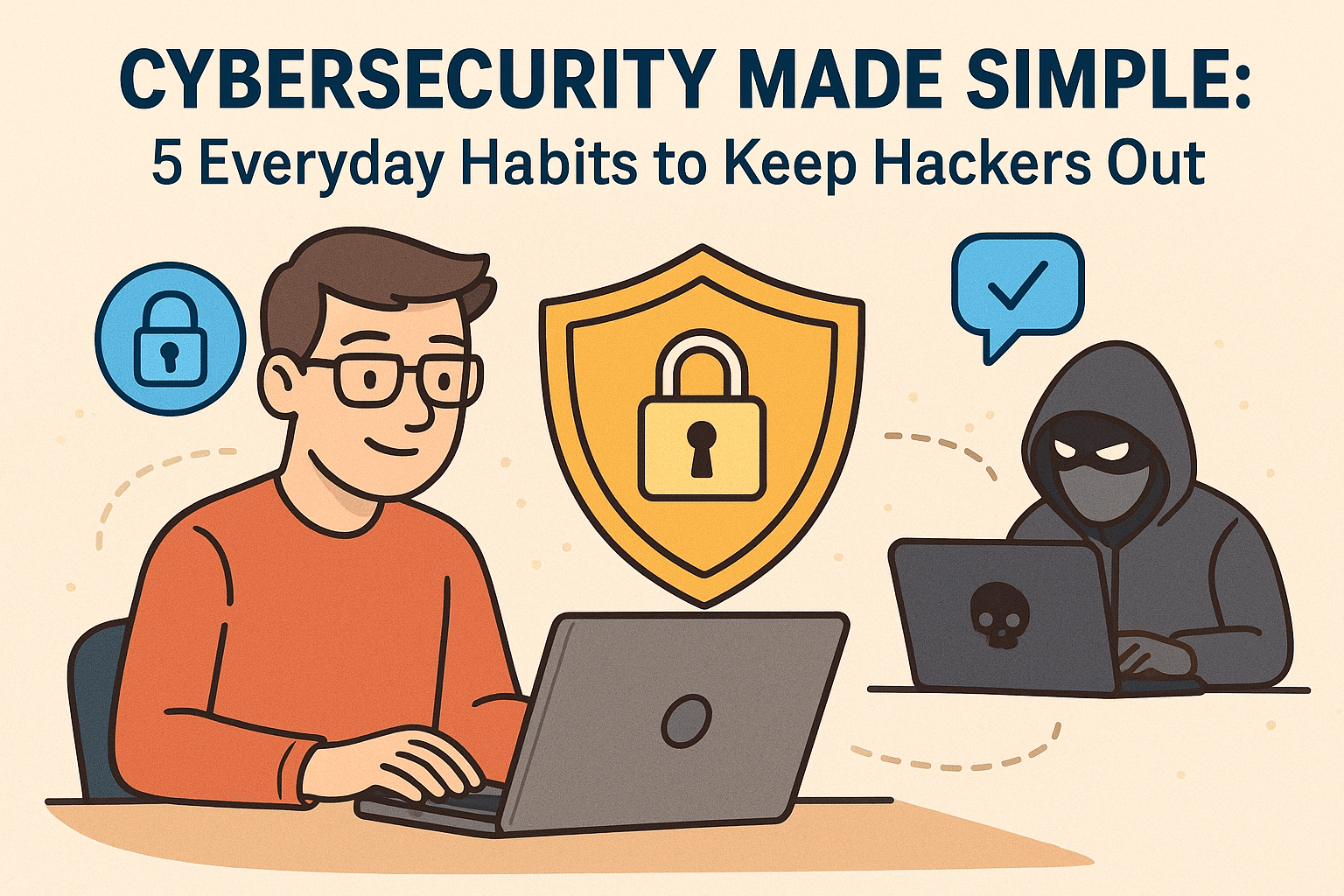
🛡️ Cybersecurity Made Simple: 5 Everyday Habits to Keep Hackers Out
Patrick Jensen (Owner)
By Patrick Jensen, Owner of Twin Cities PC Repair
October is Cybersecurity Awareness Month, and I want to take a moment to talk about something that affects all of us — keeping your computer and personal information safe online. You don’t have to be a large company to be a target. In fact, small businesses and everyday users are often the easiest ones for hackers to exploit. But here’s the good news — a few simple habits can make all the difference.
I’ve worked on countless computers that were infected with ransomware, malware, or phishing scams, and in most cases, these problems could have been prevented with a few small changes. So here are five cybersecurity habits I recommend to every customer.
1. Keep Your Software and Operating System Updated
I know those update reminders can be annoying — but they’re there for a reason. Updates often fix security holes that hackers love to take advantage of. If your computer is still running an older version of Windows, it may already be missing key protections. I can help you check your system to make sure it’s fully updated and running as securely as possible.
2. Use Strong, Unique Passwords (and a Password Manager)
One of the most common security mistakes I see is using the same password for multiple accounts. If one site gets hacked, cybercriminals can access everything. That’s why I always recommend using a password manager like Bitwarden, Dashlane, or 1Password. They generate and safely store complex passwords for you, so you don’t have to remember them all.
3. Turn On Two-Factor Authentication (2FA)
Even if your password gets stolen, two-factor authentication can stop hackers in their tracks. It adds a second layer of protection — usually a code sent to your phone or generated by an app. Most major sites now support 2FA, and it only takes a minute to set up. It’s one of the easiest and most effective ways to protect yourself.
4. Watch Out for Phishing Scams
Phishing emails are getting more realistic all the time. They might look like they’re from your bank, a friend, or even a delivery company. Always double-check the sender’s email address, and don’t click on links or open attachments unless you’re sure they’re legitimate. When in doubt, go directly to the company’s official website or give them a call.
5. Back Up Your Important Files
No matter how careful you are, there’s always a risk of malware or hardware failure. That’s why I tell every customer — always back up your data. Use an external hard drive or a secure cloud backup service, and make it a habit to back up your files weekly. If something goes wrong, you’ll still have your important photos, documents, and work safely stored.
💬 Need Help Staying Secure?
If your computer has been acting strange, showing pop-ups, or running slower than usual, it might be infected with malware. I can run a full security checkup, remove any hidden threats, and make sure your system is locked down tight.
Cybersecurity doesn’t have to be complicated — it just takes a little consistency and awareness. And if you ever need help, I’m here for you.
— Patrick Jensen Owner, Twin Cities PC Repair Serving the Twin Cities with honest, affordable computer service and support.
This Week at Twin Cities PC Repair: Tips, Tales & Tech Insights – 9/29/2025
Welcome Note
Hello, Twin Cities community! We hope your week has been smooth (at least until your computer gave you headaches). Here at Twin Cities PC Repair, we believe in keeping you informed, empowered, and (fingers crossed) error-free. Below are what’s happening this week, along with a few tips and insights for your tech.
🖥️ Featured Tip of the Week
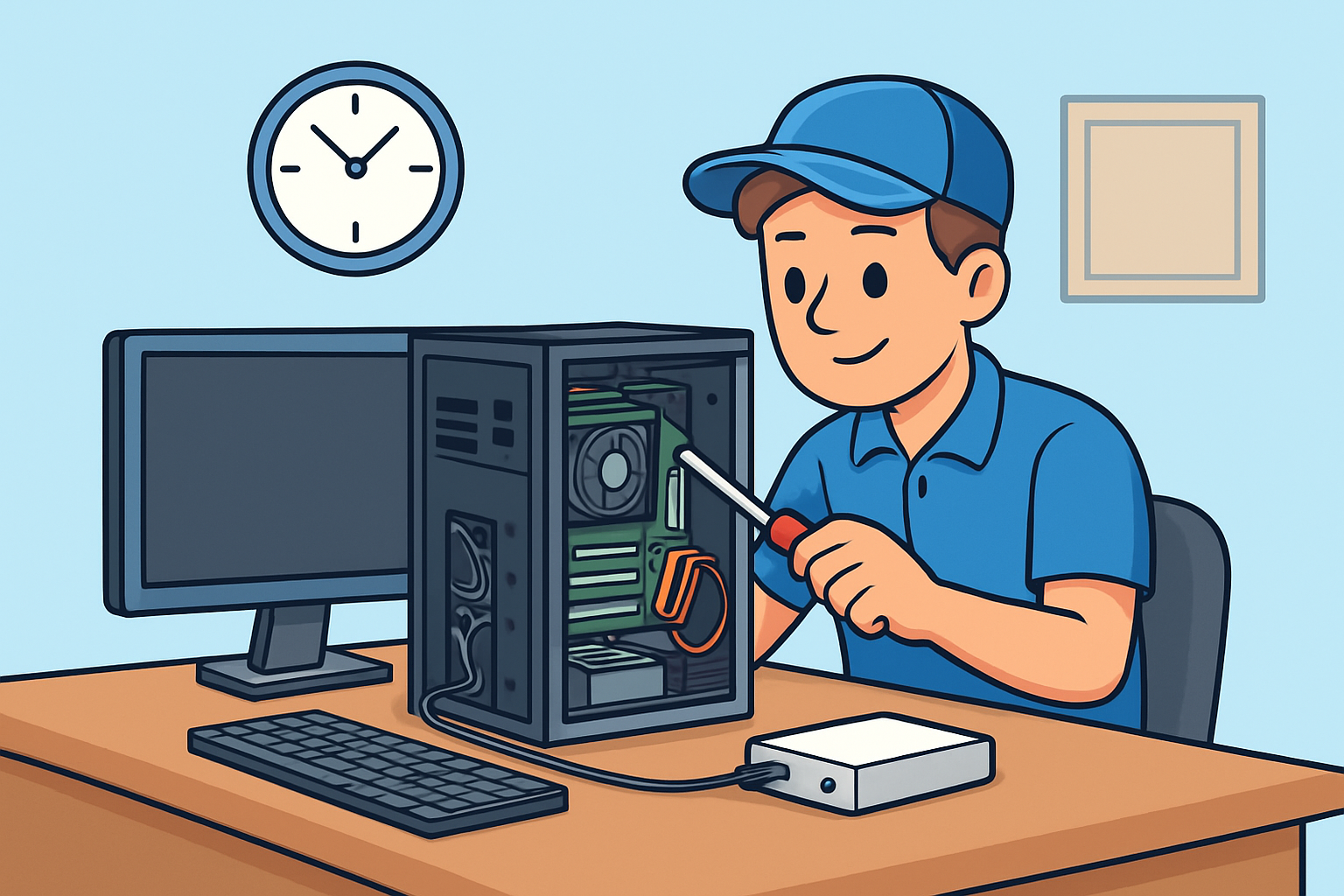
Back Up Before You Crack (Open the Case, That Is)
One thing we can’t stress enough: always back up your data before doing any hardware changes or repairs. Whether it’s a hard drive swap, SSD upgrade, or cleaning internal components, unexpected failures can happen. Use an external drive, cloud backup, or network storage to keep your photos, documents, and important files safe.
Bonus tip: verify your backup by opening a few files from it occasionally — you don’t want to discover it’s corrupt when you really need it.
🔍 Recent Highlights from the Shop
Client Spotlight – SSD Upgrade for Speed
This week, we upgraded a local small business owner’s aging laptop from a 5400 RPM HDD to a 1TB NVMe SSD. The end result? Boot times dropped from ~60 seconds to ~10 seconds. The client was stunned — “I didn’t know my machine could be this fast,” they said.
Fun (but stressful) Recovery
We had a case where someone accidentally spilled coffee on their desktop. Thankfully, the client shut off the PC immediately, brought it in, and we managed to salvage the motherboard and data. A reminder: always power off and unplug first if liquid gets in.
Network Troubles
A customer’s home WiFi was dropping repeatedly. After diagnostics, we found a failing router and interference from a new neighbor’s network. Swapping to a dual-band mesh system and choosing less crowded channels solved the problem.
💡 Tech Insight of the Week: Why Your PC Slows Over Time
Over months and years, many things accumulate to slow your machine:
Bloatware and unwanted software installed in the background
Fragmented storage (especially on traditional hard drives)
Dust and heat buildup in key components
Outdated drivers or firmware
Operating system updates not optimized
If you’ve noticed your PC dragging lately, come by and we’ll run a “speed-revival” tune-up — cleaning, updates, optimizations, and hardware checks.
✅ Quick Checklist for Your PC This Week
Check your backups — make sure they are working.
Delete programs you no longer need.
Clean dust out of fans, vents, and intakes (when safe and powered off).
Update your OS, drivers, and key software.
Monitor your disk usage; a nearly full drive often slows things down.
Thanks for reading! If you’re in the Twin Cities area and your computer’s acting up, feel free to book a device drop-off or drop by. We’d be happy to help.
Have a great (and glitch-free) week ahead,
Twin Cities PC Repair
Why Computer Tune-Ups Save You Money (and Headaches) in the Long Run – 9/15/2025 Twin Cities PC Repair Weekly Tech-Tips
When it comes to computers, most people wait until something goes wrong before calling for help. By the time you see the dreaded blue screen, hear grinding noises from the hard drive, or notice your laptop takes five minutes just to start up, the damage is often done—and the repair costs can be much higher than expected.
That’s where regular computer tune-ups come in. Just like cars, computers run better, last longer, and cost less to maintain when they’re serviced on a routine basis. A tune-up isn’t just about cleaning up files; it’s about protecting your investment, keeping your system running smoothly, and avoiding major problems before they happen.
The True Cost of “Waiting Until It Breaks”
Many people think skipping maintenance saves money. In reality, it often does the opposite. Consider this:
A failing hard drive can sometimes be detected early during a routine check. If caught in time, you can back up your data and replace the drive affordably. If not, you could be facing a complete data recovery job—easily hundreds of dollars.
Out-of-date software leaves your computer open to viruses and malware. A tune-up ensures updates are installed, security settings are checked, and your system is protected. Cleaning up after an infection is always more expensive (and stressful) than preventing one.
Overheating and dust buildup inside your machine may not be noticeable right away. Left unchecked, they can permanently damage internal components. A quick cleaning during a tune-up keeps fans running efficiently and avoids costly replacements.
What’s Included in a Computer Tune-Up?
Every computer repair shop has its own process, but a professional tune-up usually includes:
System performance checks and startup optimization
Removal of junk files, bloatware, and hidden background programs
Virus and malware scans with removal if needed
Security and update verification
Hardware inspection, including fans, drives, and memory
Cleaning dust from inside the case or laptop vents
The result? A computer that runs faster, stays more secure, and lasts longer—without the constant frustration of slowdowns and glitches.
Small Investment, Big Savings
Think about it this way: would you rather spend a little now, or a lot later? A tune-up is a small investment compared to the cost of:
Data recovery after a hard drive crash
Malware cleanup from a ransomware attack
Replacing an entire computer sooner than necessary
Even better, regular maintenance extends the life of your machine. Instead of replacing a laptop every 3–4 years, you could comfortably use it for 5–6 years with proper care. That’s hundreds of dollars saved just by taking preventive action.
How We Make It Easy
We know life is busy, which is why we offer maintenance plans and block labor hour packages. That means you don’t have to wait until disaster strikes—you can schedule regular tune-ups at a discounted rate and know your computer is always being looked after.
With prepaid labor blocks, you save money up front and can use the hours for any service you need: tune-ups, virus removal, upgrades, or troubleshooting. It’s flexible, affordable, and ensures your technology is always in top shape.
Don’t Wait Until It’s Too Late
Your computer is one of the most important tools you use every day. Whether it’s for work, school, or keeping in touch with loved ones, it deserves the same kind of routine care you’d give your car or your health.
A tune-up today can save you from a major repair tomorrow—and give you peace of mind knowing your files, photos, and data are safe.
👉 Click below to schedule your computer tune-up or ask about our block labor hour packages. It’s the easiest way to save money, avoid headaches, and keep your tech running like new.
Book a drop-off, click HERE
Book remote support, click HERE Contact me, click HERE
We use cookies to ensure that we give you the best experience on our website. If you continue to use this site we will assume that you are happy with it.

Recent Comments