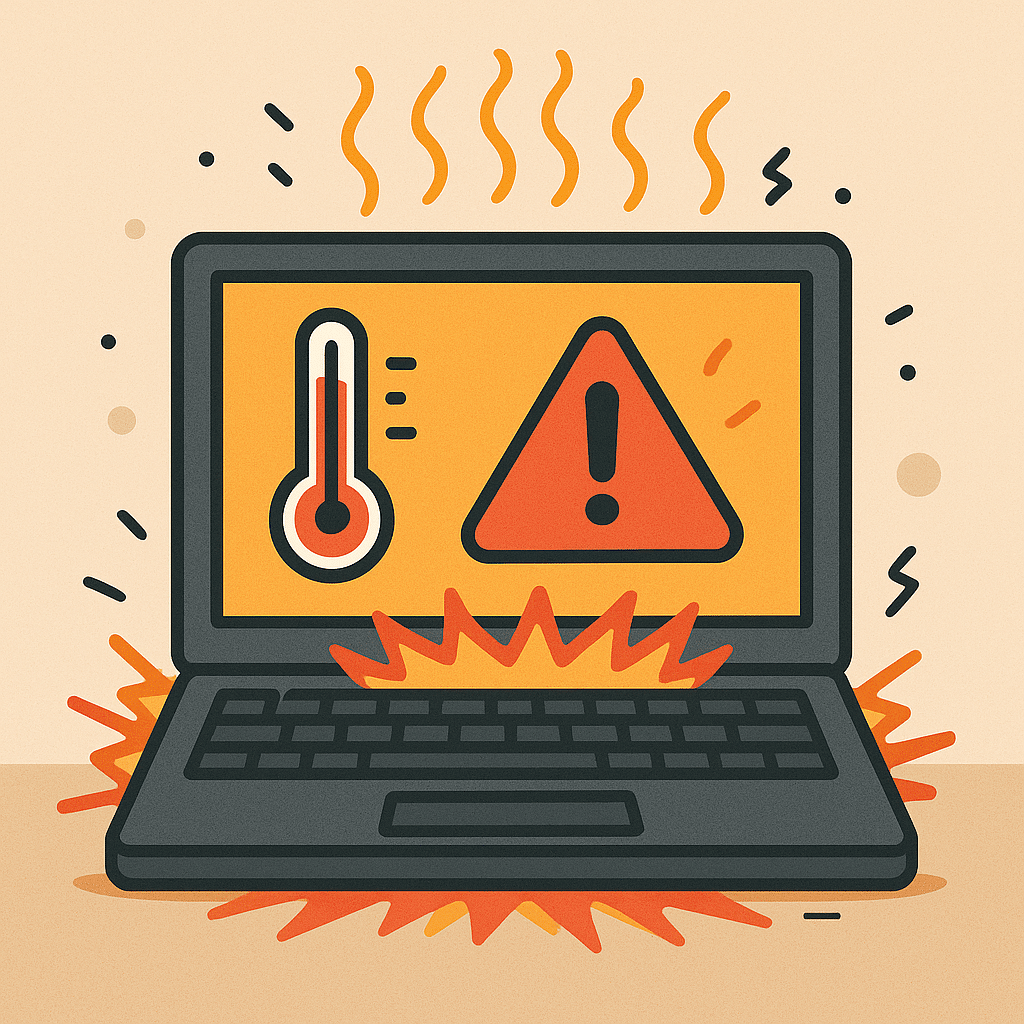
🔥 How to Prevent Laptop Overheating (and Why It Matters) – 7/7/2025
At Twin Cities PC Repair, we often see laptops suffering from heat-related issues—especially during Minnesota’s warmer months. While laptops are designed to get warm under load, excessive heat can damage internal components, slow performance, and lead to unexpected shutdowns. Let’s explore why laptop overheating matters and how you can keep your device cool and healthy.
Why Is My Laptop Overheating?
Overheating occurs when internal components generate more heat than the system can dissipate. This is common in compact devices like laptops, where airflow is limited. Some key causes include:
Dust buildup in vents and fans
Blocked airflow (e.g., using on a bed or lap)
Old or dried-out thermal paste
Heavy multitasking or gaming without adequate cooling
What’s the Risk?
Ignoring an overheating laptop can lead to serious problems:
🔧 Permanent hardware damage to your CPU, GPU, or motherboard
🐌 Slowed performance as the system throttles itself to reduce heat
💾 Data loss from unexpected shutdowns or crashes
🔋 Battery degradation due to heat stress
5 Easy Ways to Prevent Laptop Overheating
1. Clean Your Vents and Fans
Dust is the enemy of airflow. Use compressed air to clear out fans and vents every month. This simple task can lower internal temperatures significantly.
2. Avoid Soft Surfaces
Never use your laptop on a pillow, blanket, or couch. These materials block airflow. Use a cooling pad or flat, hard surface instead.
3. Monitor Your Temperatures
Install free tools like HWMonitor or Speccy to keep tabs on your CPU and GPU temps. Ideal laptop CPU temps should stay below 85°C under load.
4. Adjust Your Power Settings
Enable battery saver or balanced power plans to reduce CPU usage. On Windows, go to Settings → System → Power & battery → Power mode.
5. Refresh the Thermal Paste
Over time, thermal paste between your CPU and heatsink loses effectiveness. Reapplying high-quality thermal paste can lower temperatures by up to 15°C.
When to Seek Professional Help
If your fan sounds like a jet engine, your laptop feels hot even when idle, or it shuts down without warning—it’s time to bring it in. Our team can diagnose the root cause and restore safe operating temperatures.
💰 Summer Special: Laptop Cooling Tune-Up – Just $170!
For a limited time, we’re offering a Cooling Tune-Up Package, which includes:
Full internal cleaning
Thermal paste replacement
Fan and heatsink inspection
Temperature and thermal strain report
Offer valid through August 31, 2025. Book now and give your laptop the attention it deserves.
📍 Visit Twin Cities PC Repair in Bloomington, MN
Whether you need a basic tune-up or advanced repairs, our friendly, professional team is here to help. Send us a message on our Contact page, or book your device drop-off Here.
Stay cool, stay productive – and let us handle the heat. – The Twin Cities PC Repair Team
Gaming on Laptop Dust: Life and Performance- 1/24/2023
Let’s be real: most gamers rely on performance and higher usage frequency to achieve success and move on to the next level. These are two factors to take into consideration when discussing why a computer, specifically a laptop, should be periodically cleaned. And I’m not talking about PUPs, bloatware, viruses, or other software stuff. I’m talking about hardware and dust and debris accumulation. And you can “game” the accumulation of dust at some point!
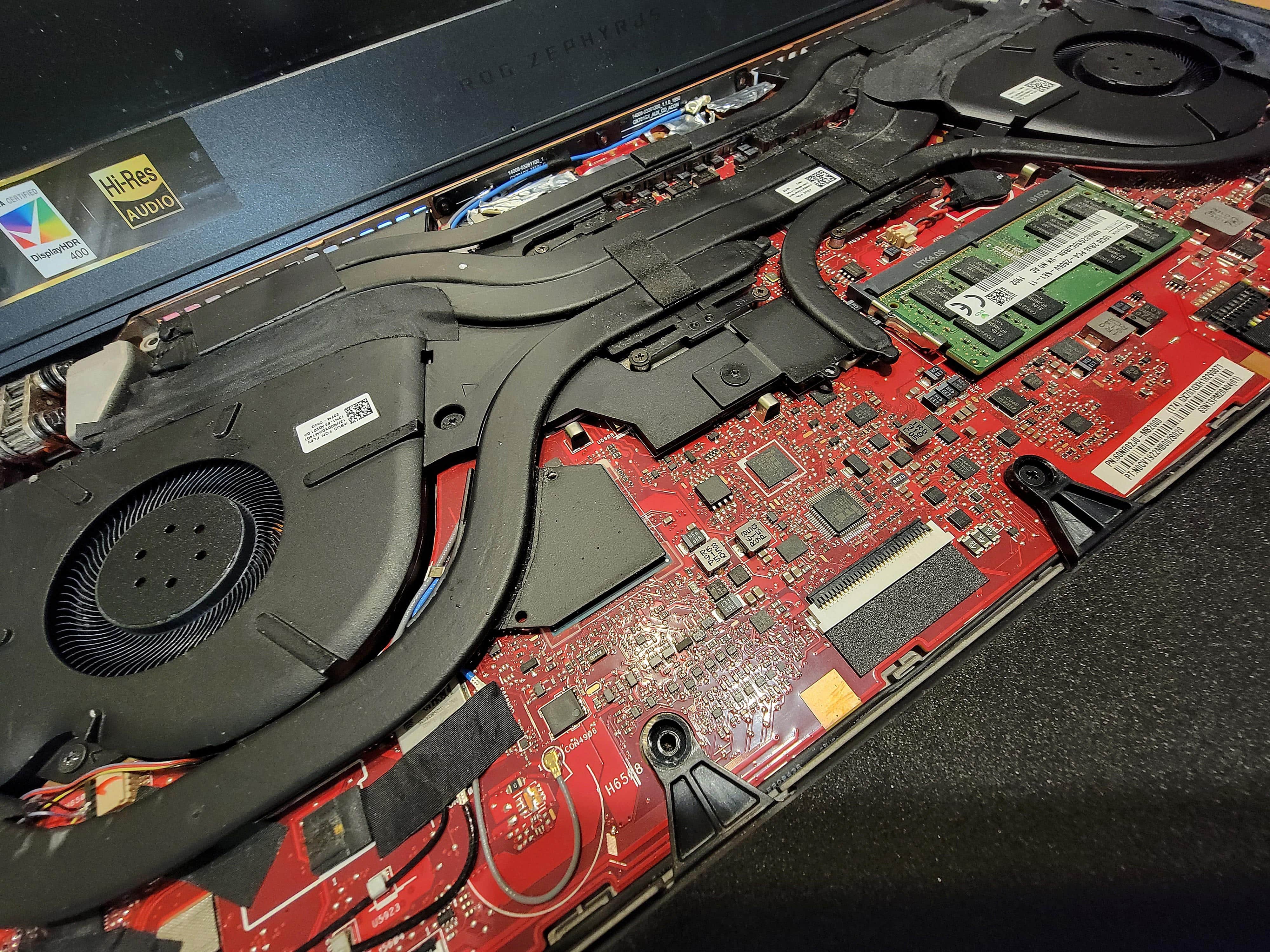
Here’s an example case
Last week I had a client come in with a high-end ASUS ROG gaming laptop. He complained about higher than normal operating temperatures, especially under higher than normal GPU loads. In my process of diagnosis, I opened up his laptop and noticed both the CPU and GPU fans were caked with dust, and the GPU fan was not spinning. My conclusion was that rather than clean the fans and heatsinks, the best plan of action, being that the GPU fan was bad, was to replace both the GPU and CPU fans. Most fans have a lifecycle, and it’s my belief that if a laptop has two fans, it’s always best to replace them both at the same time. They are rather inexpensive. This saves you the cost and effort of replacing the other fan shortly down the road. The client agreed, and we proceeded with the quotation for the work to be performed. In terms of fan replacement, traditional productivity laptops are fairly straightforward. However, higher-end gaming laptops are a bit more difficult and involved. There are multiple theories we can come up with as to why the GPU fan failed, but two theories come to mind in this case. 1.) The fan simply reached the end of its lifecycle. 2.) The buildup of dust and debris caused excessive heat and resistance on the fan. I’m more apt to think #2 was the case here based on the overall age of the laptop.
Not every case is the same
Now, I’m not saying that every case will require fan replacement. In most cases, you’ll only need thorough dust removal within the chassis. Taking a can of compressed air and blowing it through the laptop vents is absolutely the wrong approach. This just moves the dust around the inside of your computer, which blankets the motherboard. It can also cause dust to wad up in the fan’s spin zone, causing an obstruction. Doing the job the right way involves opening up the laptop chassis and disassembling down to the motherboard level, removing the fan(s), cleaning the fan(s), removing the heatsink, cleaning the fins on the heatsink, and removing and reapplying thermal grease to the GPU and CPU. We then reassemble the laptop and run it through a benchmark test to monitor temperature levels.
If you are experiencing excessive operating temperatures or fan noise and are unsure of the inner-workings of your computer, feel free to contact the professionals at Twin Cities PC Repair at (651) 456-8655 or send us a message from our Contact page.
We use cookies to ensure that we give you the best experience on our website. If you continue to use this site we will assume that you are happy with it.


 Here’s an example case
 vents is absolutely the wrong approach. This just moves the dust around the inside of your computer, which blankets the motherboard. It can also cause dust to wad up in the fan’s spin zone, causing an obstruction. Doing the job the right way involves opening up the laptop chassis and disassembling down to the motherboard level, removing the fan(s), cleaning the fan(s), removing the heatsink, cleaning the fins on the heatsink, and removing and reapplying thermal grease to the GPU and CPU. We then reassemble the laptop and run it through a benchmark test to monitor temperature levels.
Recent Comments