Why Your Laptop Battery Dies So Fast — And What You Can Do About It
🖥️ Twin Cities PC Repair Newsletter — July 2025
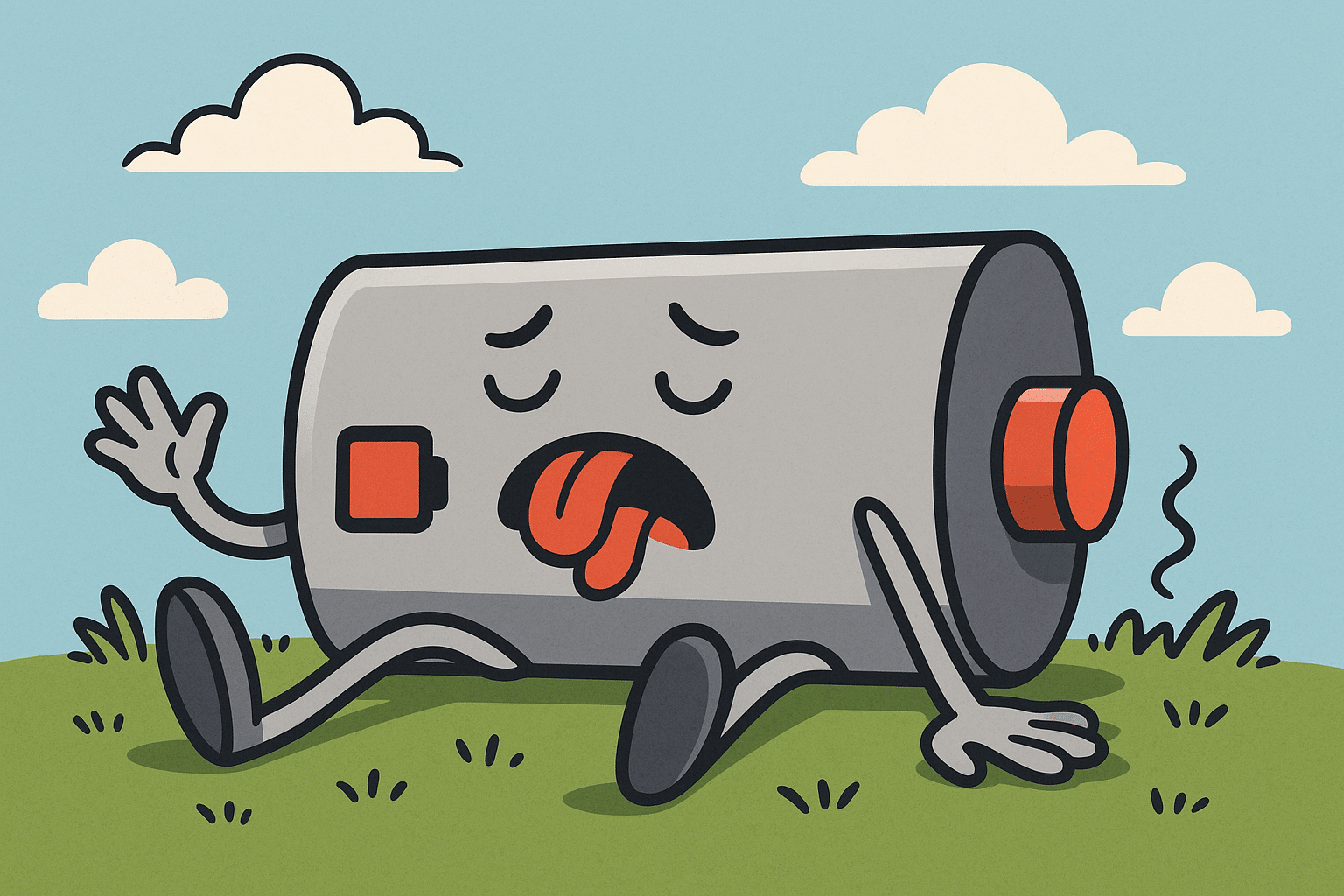
Is your laptop constantly tethered to a power outlet because the battery just won’t hold a charge? You’re not alone. Battery life is one of the most common complaints we hear at Twin Cities PC Repair, and it affects laptops of all makes and models—even newer ones.
But here’s the good news: A fast-draining battery is often fixable. In this newsletter, we’ll cover the most common causes of poor battery performance, and how we can help extend your battery’s life and improve your laptop’s efficiency.
🔍 Top Reasons Your Laptop Battery Dies Quickly
1. Too Many Background Apps
Your laptop might be doing more behind the scenes than you realize. Apps like Dropbox, Zoom, Teams, and dozens of hidden background processes can constantly sync, update, or scan—using your CPU and draining the battery in the process.
What we do: We run a startup optimization service that disables non-essential programs and services to keep your system lean and efficient.
2. Screen Brightness and Display Settings
Your display is one of the biggest battery hogs. A full-brightness screen can cut your battery life in half compared to dimmed settings.
Tip: Use adaptive brightness or manually lower the screen brightness when unplugged.
3. Aging or Failing Battery
Laptop batteries are consumables. Most lithium-ion batteries last between 300–500 charge cycles, or about 2–3 years of typical use. If your battery is swelling, charging slowly, or showing drastic drops in percentage, it’s time to get it tested.
What we do: We offer full battery health diagnostics and replacement services using top-quality OEM and high-performance aftermarket batteries.
4. Overheating and Dust Buildup
Heat is the enemy of battery health. Dust-clogged fans and poor thermal paste application can cause your laptop to overheat. The system compensates by throttling performance or kicking fans into overdrive—both of which waste power.
What we do: We clean out internal fans, re-paste your CPU if needed, and restore thermal efficiency to protect your hardware and your battery.
5. Power-Hungry Malware or Background Scans
If your laptop is infected with malware, or your antivirus is running constant full-system scans, battery life can plummet.
What we do: Our malware removal and performance tuning service ensures your system is clean and running only essential processes.
🔧 What We Offer: Battery Life Tune-Up & Optimization
Our Battery Life Tune-Up Package includes:
✅ Full battery health and charge cycle analysis
✅ Internal system cleaning and fan check
✅ Startup and power management optimization
✅ Recommendations for settings and software tweaks
✅ Optional battery replacement, if needed
All of this starts at just $170, and most tune-ups can be completed within a day or two!
📍 Your Local Tech Experts in Bloomington, MN
Whether you’re a student, professional, or just someone who wants to get more unplugged time from your device, Twin Cities PC Repair is here to help. We offer fast turnaround, honest advice, and clear pricing—no tech jargon or upsells.
Don’t wait until your laptop won’t hold a charge at all. Bring it in for a checkup today and breathe new life into your machine.
The New PC Tune-Up – 11/29/21. How exciting! You got a new computer for Christmas. It’s sleek, shiny, and so much faster than what you had before. That’s great, but it doesn’t mean you should leave it untouched. This article shares several steps you might take to secure your data and keep that new device in tip-top shape.
First things first. Before even logging into personal email or other top sites, you’ll want to update the operating system (OS). Yes, most computers come out of the box with Windows, but you can’t know when that item was boxed. There could be important updates that you don’t want to miss.
You’ll also want to install the latest drivers during your tune-up. Different hardware on your computer can need specialized drivers from the manufacturer. Gamers, for instance, may want to ensure they download the latest to boost performance.
While you’re doing all this uploading and upgrading, also look to remove junk that may have come on the computer. It’s no longer as common, but manufacturers can reduce cost to the consumer by pre-installing software.
You might not have any need for the tools that come already installed. Meanwhile, they slow down your computer. Remove the clutter to improve your computer’s processing. Head to your PC’s Control Panel and look to uninstall programs and utilities that you don’t want. Be careful, though. Just because you don’t know what it is doesn’t mean it’s not serving a valuable purpose.
Starting out on a new computer is also a great time to set up the free software. For many of us this includes:
Google Chrome – the internet browser;
Skype – for instant messaging, voice and video calling;
VLC – a multimedia player;
FoxIt Reader – to create, edit, sign, and secure PDFs;
7Zip – used for archiving files.
Involving an IT expert for Your Tune-Up
If you had a great sales experience, you may not want to seek IT help with your new computer. Still, it can prove useful.
Your new computer may also need BIOS updates during your tune-up. Again, the hardware was current when your computer was boxed up but may be lacking the latest by the time it gets to you. A note of caution: this is not an update to do alone. BIOS updates don’t add new features, security patches, or performance improvements, but they may fix a bug with a piece of hardware or add support for your central processing unit (CPU). These updates can be risky if done incorrectly, so work with an IT tech.
Talk also with an IT tech about the best data backup plan for your needs. You’ll be creating important documents, downloading sensitive data, and uploading valued images. Don’t risk their security by failing to back up.
IT support will also suggest the best security tool for you to use to protect against malware. With so many free and fee-based third-party alternatives to Windows Defender, you may want help deciding on the best one.
We’re here to help you get the most out of your new computer. Or, if you’re not sure yet which one to buy, we can consult with you on that, too. Contact us today at (651) 456-8655 or visit our Contact page!
We use cookies to ensure that we give you the best experience on our website. If you continue to use this site we will assume that you are happy with it.

Recent Comments