How to Tell if You’ve Gotten Hacked… Being hacked is the single biggest fear of most computer users. Many believe the first sign of strange behavior or errors on their PC is a sign hackers have taken control. But are hackers really inside your machine, stealing your information? Or should we be on the lookout for more subtle signs? What does being hacked really look like?
There is an important distinction to make between being hacked by a person and being infected with a virus or malware. Virus software and malware are automated processes designed to damage your system, steal your data, or both. There are of course ways that we can defeat these processes, but what if we are instead hacked by an individual?
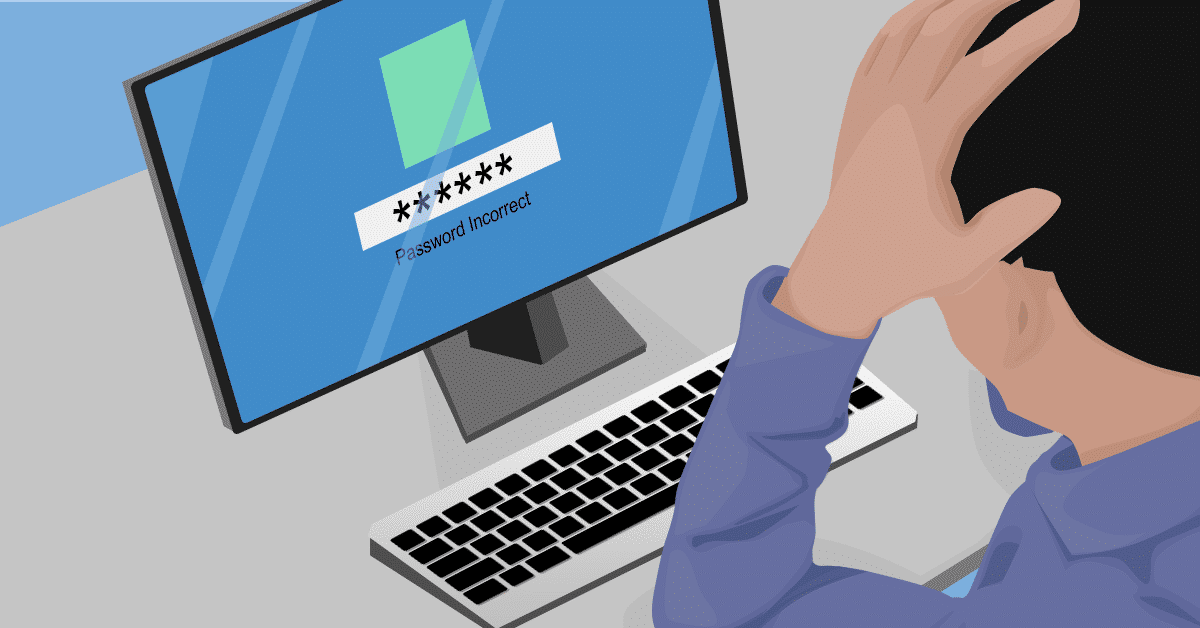
Logins not working
One of the first steps a hacker might take would be to change the computers passwords. By doing so, not only do they ensure future access to the account, they prevent you from accessing the system to stop them. For the hacker, this is a crucial step that keeps them in control. With this in mind, we always want to make sure to keep on top of our own login details and how often we change them.
Security Emails or SMS’s from online services
Many services track which device and location you logged into your account from last. If your account is accessed from a new device or a different country it might trigger an automated email or SMS to ask if this new login is your own.
If you have logged in using a new computer, tablet, or phone; an email that asks “hey, is this you?” need not be cause for alarm. If you haven’t, it may be time to investigate further. This service is an important part of information security. It may be a key first step to identify someone else gaining access to your account.
Bank accounts missing money or strange transactions
Most commonly today, hackers commit crimes to steal money. The end goal for hackers is typically to profit from their crimes by taking money from people online.
It always pays to keep a regular eye on your financial transactions to make sure you know what money is coming and going from your account.
You may see a large sum missing where hackers have attempted to take as much as they can in a single transaction.
Alternatively small, hard to notice transactions may appear. These often account for small purchases where attackers have tested the details they have to make sure they work.
Sudden loss of cellular connectivity
Network interruption is a symptom that few people expect but occurs commonly when hackers attack. Many banks and online services use a security feature known as Two-factor authentication. To do this they send a short code to your phone or app when you log in. Two-factor authentication is ideal in most cases and a great boost to security.
Hackers can try to work around this by calling your mobile service provider to report your phone as lost or stolen. During this call, they will request your phone number be transferred to a new sim card that they control. When your bank sends its regular two-factor authentication code to the number registered, it goes instead to the hacker who may be able to log in. From your perspective phone service will simply stop working.
Keeping vigilant and maintaining security
These are only some of the modern techniques that hackers can try to use to gain access to your accounts. It pays to be extra vigilant and pay close attention to the signs and signals that indicate you may have been hacked.
Check out our partner links for more helpful information:
If you suspect that you might have been hacked, or would like help to prevent hackers in future, give us a call at (651) 456-8655 or visit our contact page HERE and we’ll improve your security.
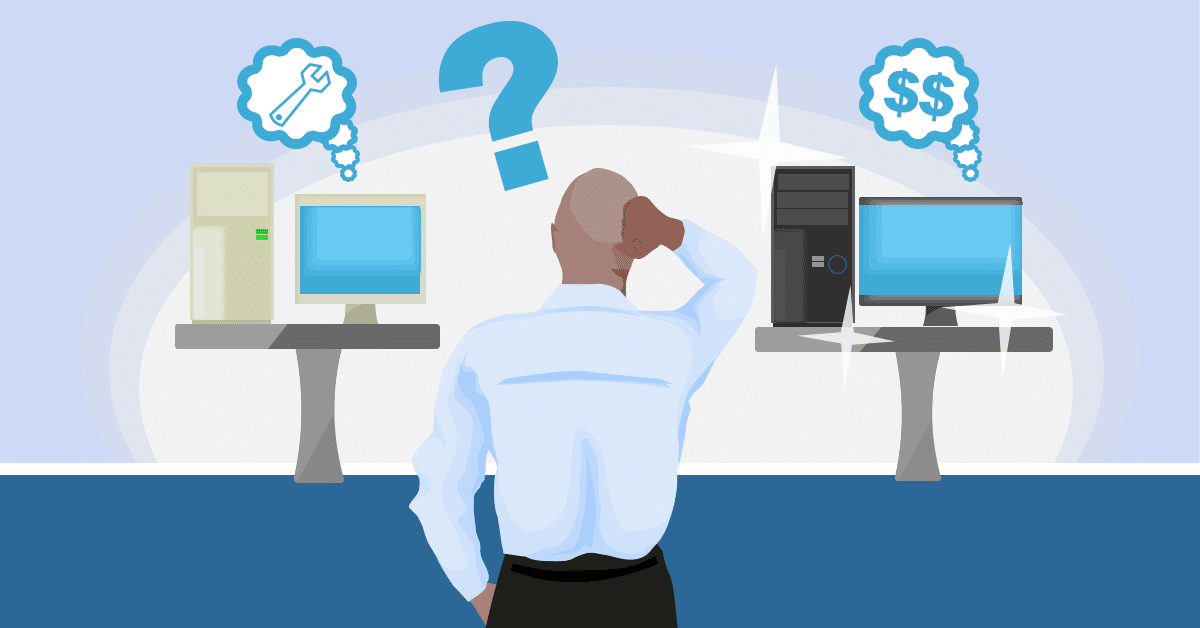
Should You Repair, Upgrade, or Replace Your Computer? Like many valuable things we buy, new computers suffer from wear and tear over time. Our computers are particularly vulnerable as we have placed more and more demands on them every year. New machines have gotten faster, quieter, more reliable, and more capable over time. At the same time our own computers have begun to slow and sometimes even stop performing altogether.
There are many ways to address the problem of a PC which isn’t quite performing up to the task anymore. Whether frustratingly slow or no longer working; we are happy to take a look. When you bring your computer to us we will diagnose the condition and find a solution that works for you. Often times the simplest solution works best. A complex problem sometimes only needs a simple repair to get your home computer up and running like new again. Whether a small replacement part, loose wire, or bad connection; we will find and fix the problem to give your familiar, home machine a new lease of life.
Many computers come to us running slowly, taking a long time to start up, or freezing when trying to load files and programs. Often owners have reached breaking point and become convinced the machine is fit for only the scrap heap. In many cases, the problem can be pinpointed to a bottleneck in the system. A single, seemingly trivial, part can be holding up the entire system. Amazingly, upgrading just that one component can make the whole machine run like new again.
Adding memory can provide extra space for programs to run faster. Adding an updated, faster hard drive can allow files to be retrieved without delay. In both cases, a low-cost single component can provide a cost-effective solution that makes an old machine like new again.
In some cases, computers succumb to more major faults. A critical part, difficult to replace, may stop working altogether. A failure of the motherboard for example, the backbone that all other components connect to can be expensive, if not impossible, to fix. Typically, with the fast-paced and ever-changing nature of computing, a motherboard will only house computer parts that were manufactured around a similar time.
A motherboard is almost certain to be incompatible with components built just a couple of years before or after its own design for example. Occasionally even a motherboard failure can be resolved too. In these cases we strive, whenever possible, to find a replacement board of the same generation that will work alongside existing components. The result is a cost-effective solution that keeps cost down by saving replacement parts.
In cases where a like-for-like replacement motherboard is not available, many parts of the computer may have to be replaced at the same time. Often replacement costs in these cases can get close to, or even exceed the cost of buying a new machine.
We would always give advice where it makes sense financially and practically to consider replacing an old machine. Often, in this respect, a home PC can be considered a little like a car. Sometimes a simple, non-expensive, easy to replace component such as the window wiper can fail. While a crucial part to be used for driving; it would be silly to suggest replacing the vehicle once it has worn out.
A window wiper may be low-cost and simple to replace, but if the engine were to wear down or break the solution may not be quite as simple. Attempting to make a 30-year-old car as fast, safe, and reliable as a brand new model generally doesn’t make any financial or practical sense. Sometimes the best course of action to save money and avoid breakdowns is a more up to date vehicle.
In computing, many of the same rules hold true. The best solution in each case is always tailored personally to fit you and your own computer.
Bring your machine in to us or give us a call us at (651) 456-8655 to discuss your computer issues or visit our Contact page HERE. We’ll keep you informed about your machine and advise on the best course of action to get you up and running as quickly as possible.
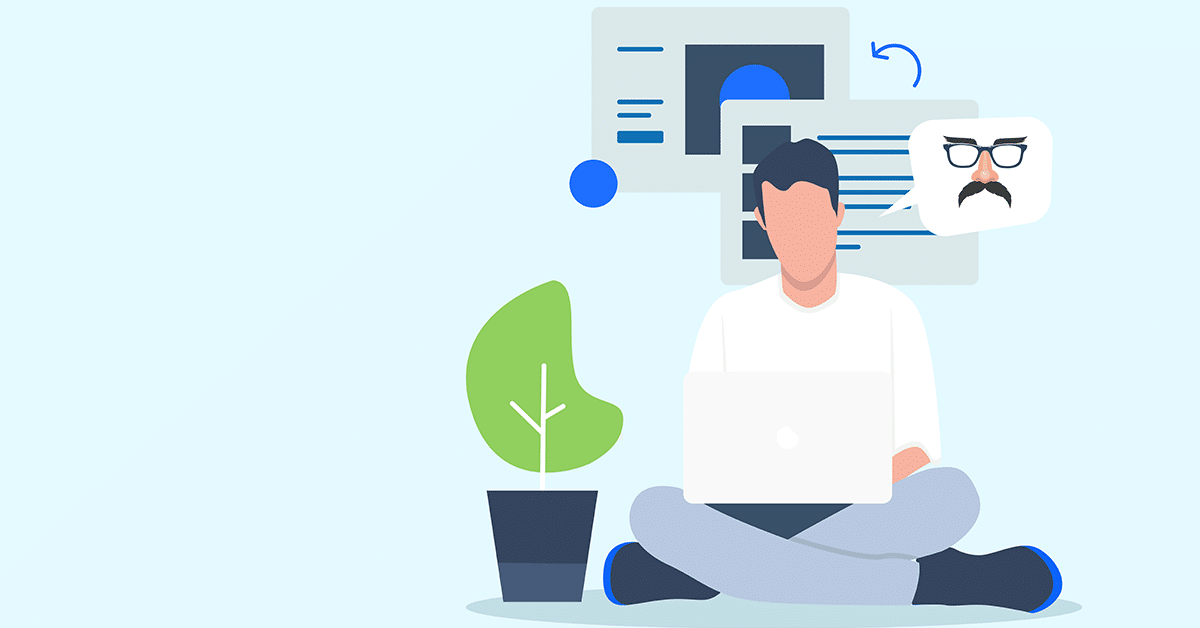
Private browsing important to you? Maintaining your privacy while using the internet has become more challenging over the years. The recent Facebook privacy scandal made that abundantly clear, with users shocked at how much information had been recorded about them. While it’s almost impossible to enjoy the internet and leave zero digital footprints, there are things you can do to hide your online activities – some more effective than others.
1. Get a virtual private network (VPN) VPNs aren’t just for business and downloaders now, they’ve gone mainstream. Once set up, it creates an encrypted connection from your computer to the VPN providers computer. The other computer could be in another city or another country. When you visit a website, it can only see the VPN computer – not yours. You essentially run around the internet pretending to be another computer, in another location. Since your connection is encrypted, even your ISP can’t see what you’re doing online, making your usage anonymous.
The downsides: Because your internet usage has to route through another computer first, your browsing and download speed could be affected. They can be tricky to set up and not all VPNs offer the same privacy levels (the better ones tend to be more expensive). Some websites may even block visits from people using VPNs, so you may end up switching it on/off as required.
2. Go incognito Most browsers have a private browsing mode, each called something different. For example, Google Chrome calls it ‘incognito’, Microsoft calls it ‘InPrivate’. Before you take the name at face value, it’s a good idea to talk about how they define ‘private’. Unlike a VPN where you can dance around the internet anonymously, private browsing simply means it won’t show up in your browser history, or what you entered into forms. This feature is free, so you always have the option to use it, and it’s actually more helpful than you might think. Common uses include price shopping to reset sale timers and access local-only pricing and overriding usage limits on certain sites. Some sites use cookies to control your free trials and private browsing can help you get around that. For example, some news sites limit you to 5 free articles a month unless you pay. Private browsing can extend that trial quite easily!
The downsides: It can’t pre-fill saved passwords and it won’t help you type in the website name even if you’ve been there before.
3. Think about who’s watching While you might be naturally careful when using a public computer have you thought about who’s watching what you do on your work computer? Some workplaces have employee monitoring software that tracks all sorts of data, including taking screenshots of your desktop. It helps them create rules about computer usage but it may also provide them with evidence you’ve been breaking those rules. Stepping out to the internet cafe can be even more risky, as people can install keyloggers that record every keystroke, including your credit card numbers and logins. You’ll never know your activities are being recorded, even if you use private browsing.
The downsides: None. Awareness of the risks and the possibility of being watched ensures you’re more likely to use the internet safely.
While private browsing can help keep your internet usage under wraps, it’s not a magic bullet to cover all possibilities. Many people believe they’re invisible AND invulnerable while private browsing, a mistake they end up paying for. You’ll still need solid anti-virus and password habits to protect against threat, and to be a smart internet user who avoids suspect websites. Consider the options above as privacy-enhancing measures, not one-stop solutions.
Looking for a VPN? Our recommendation is Nord VPN. For more information, visit: https://nordvpn.com/
Need help with your online privacy? Give us a call at (651) 456-8655 or visit our CONTACT page.
Most homes are trying to reduce power costs by turning off lights and appliances, but do the same rules apply to computers? After all, it requires more than flicking a switch on your way out the door. Some people believe you should shut down after every use to save wear and tear, others believe you should never shut down your computer – ever. Others simply want to make sure the pages and apps they left open are still there waiting for them. So, who’s right and what are they really doing?
Back when computers were clunky behemoths that took a long time to start, you’d go nuts at the person who shut it down when it was your turn. If you have an older computer, maybe you still do. Modern computers actually have two options for their downtime: Shut down or sleep.
When it shuts down, the system goes through and closes any open programs (often prompting you to save first), then gradually cuts power to all components. It’s a methodical process that seems quite fast to us but is actually made of 100+ intentionally ordered steps. If there’s a sudden blackout or you hold the power button until it turns off, it means the steps aren’t followed and damage is possible. The second option is to put your computer to sleep. This can be triggered by an automated timeout or a user click. Your system uses a special type of memory called RAM to hold all your running programs exactly as you left them but use minimal power. The hard drive stops spinning, the graphics card lets the screen go black, and even the system fan slows to become almost silent. When you wake it by moving the mouse or pressing a key, it ‘wakes’ again almost instantly.
Reasons to Shut Down
A switched off computer isn’t drawing power which is a tick for the environment. But shutting down is about more than saving power. It can sometimes give improved stability over a machine that’s been running for days/weeks. This is because every time you shut down, you give your computer a chance to clear out all temporary junk files it’s been carrying in memory. It also triggers various health checks on startup that may otherwise be missed, important routines like checking for updates or scanning for viruses. It’s certainly more convenient to spend an extra minute booting up than lose everything to a cyber-attack. For older computers or those under heavy strain like gaming or video editing, shutting down also provides a necessary chance for the components to cool down.
Reasons to Sleep
Speed is the big selling point here. You can literally sit down and start working where you left off without the delays of bootup, finding your program, opening your saved files, scrolling down… it’s all right there and ready. You can even tell it how long to wait before putting itself into sleep mode, just in case you get called away and forget. Windows updates still run in the background, so that’s okay, but it’s important to note that your computer might get stuck waiting for a reboot that never comes. Those pending updates may stack up, ineffective until it either forces a reboot or becomes unstable enough that you give in to a restart.
The best method is….
Since the whole point of having a computer is that it’s ready to work when you are, we recommend shutting down at night when it’s definitely not in use but using sleep mode during the day. Updates will get all the rebooting they need, memory is refreshed for the new day, and you’ll get the best of both worlds – speed and stability.
We can help your computer boot faster, give us a call at (651) 456-8655 or visit our Contact Us page HERE.
We know computers always break at the worst possible time, but what exactly prompts that failure? It’s easy to think it was something you did since you were using it at the time, but while your online gaming frenzy might cause a temporary crash, normal user actions are rarely the cause of a broken computer.
Physical Damage
Accidents happen, but they don’t always mean you need to buy a new computer. As an electrical item, liquid spills are a big problem. This could be anywhere from a spill on the keyboard, going overboard with the screen cleaning spray or even a flood that reaches the computer. Laptop users need to be especially careful when choosing their work surface, as cafes and kitchen tables often have small puddles left behind. If you’re lucky and the liquid didn’t fry the circuits, ongoing corrosion is still likely, as is stickiness to gum up the internal parts. Similarly, a dropped computer isn’t going to be happy, nor is one that’s been knocked around. Even a light thump of frustration can cause loose cables, disconnections and internal damage.
Age
Computer parts have an expected lifetime, especially moving parts like fans or mechanical hard drives. Some computers can run 24/7 for up to a decade, while others can be barely used but fail within warranty. When age is the issue there are usually early warning signs like extra noise or slowing down, but the actual ‘break’ generally happens when you go to turn the computer on, perhaps after a crash or overnight – either it makes a valiant effort before giving up, or nothing happens at all. Sometimes lasting age is the luck of the draw with how it was manufactured, and quality does play a big part in how long it can keep churning.
Power Surges
We like to think electricity is a constant stream that never varies, but computers are particularly sensitive to both surges (too much electricity) and brownouts (not enough electricity). You might notice the lights dimming or flickering during a brownout, or glowing just a tad too strong during a surge. These variations never last long, and they’re not something you can control unless it’s just your house (it’s worth checking with your neighbors), but they can easily break your computer. A surge protector can guard against mild increases in voltage, but brownouts and strong surges will still cause damage.
Heat
Overheating is a big contributor to premature computer death. Some computer parts run hot and need plenty of cooling to keep them working. You might not feel it from the outside, but internal components can rapidly build up heat that needs to go somewhere. When your airflow vents get blocked with dust or pet hair, the temperature continues to increase until components literally bake themselves to failure. At set temperatures, the computer will automatically switch off to try and cool down, however the more often this happens and the higher the temps, the more likely your computer is to die.
Hard Drive Failure
Your data is stored on a hard drive, and if you’ve got a mechanical hard drive (most people do), it works a bit like a record player with a spinning ‘platter’ and a needle that reads it. Small bumps, liquid, age, surges and overheating can all trigger hard drive failure. Along with making your computer unusable, hard drive failure means your data is also lost. While sudden breakage might leave you surprised, take note of any strange noises or repeated crashes and back up your data in advance.
Like a car, your computer needs to be serviced too. We can check your computer, both hardware and software, to make sure it’s running right and working its best for you. Give us a call at (651) 456-8655 or visit our contact page HERE.
Refurbished computers are almost like an insider secret – you can get great system specs for a fraction of the price. It’s how many families are meeting their back to school needs and upgrading their old systems, complete with warranty.
There’s one hot tip these people know: a refurb is NOT the same as used. You’re right to avoid those 2nd hand computers you see on Craigslist or Gumtree because there’s a reason that person is selling it! It’s probably slowed to a crawl, making weird noises or flat out broken in a way you’d never discover until too late. Refurbished computers are the complete opposite. They’re computers that have been given a new life, usually with a comprehensive repair, or sometimes they’re brand-new computers that were returned with a small problem like a hard drive failure, so we swap it out and sell it at bargain prices. Occasionally, the computer was even returned simply because the buyer changed their mind, but it’s still essentially brand-new (it might still be in the box!).
Quite often, refurbished computers start their life as business machines, built to the latest specs with business-grade components. When the budget or lease says ‘replace the computers’, that’s what the business does, whether the computers need it or not. There’s nothing wrong with them and they’ve likely been babysat by a corporate IT department who kept them in perfect condition every day. These are great machines that are still plenty fast for home use, both desktops and laptops. Plus, because business-grade components are more durable than the consumer ones, the entire system has been built to last longer and perform better, often up to several years without a problem. Rather than send these impressive machines to landfill, we check and replace necessary components and re-install a clean operating system. Next, we put them through a stack of verification tests, then pack them up ready for their new home. When you talk to us about buying one, we’ll always make sure you get a system that not only keeps up with your needs now, but gives you breathing space for the next few years too.
What are the benefits?
You save a LOT of money: You get yourself a great computer that’s been set up and checked over by an expert technician, for significantly less than the cost of buying new. Add in the fact that when you score a refurbished business computer you’re also getting more durable, higher-quality components that will last you for years longer than the off-the-shelf consumer model, it’s a clear win. We always recommend that when you see a refurbished deal that’s got you smiling, you act fast – it won’t sit around waiting for you!
Covered by warranty: A warranty is always included with our refurbished computers, giving you value plus peace of mind. It’s your guarantee that buying refurbished was a great decision. Problems are extremely rare since your computer has been through stringent checks, but if anything pops up that’s giving you trouble, we’ll fix it fast. Forget the delays and hoop jumping you might get with your other warranties, we stand by ours with rapid action.
You’re saving the environment: Fewer machines end up in landfill and fewer resources are used for unnecessary manufacturing. When you consider each computer requires a certain amount of precious metals to be mined, plastics to be created, packaging created from multiple materials and all the associated flow on effects of shipping, refurbishment is the right choice for the future. While you might not personally see the environmental impact of your decision to buy refurbished, rest assured the planet appreciates it!
Are they reliable?
Some people think that refurbished computers are more likely to break, when in truth, in some cases they’re actually more reliable than brand new. Manufacturers have an expected failure rate, a percentage of computers that go straight from the factory to buyers who discover their expensive new system is dead-on-arrival or breaks within weeks. A refurbished computer has already stood the test of time and it performed without missing a beat. By the time it’s gone through our checks and repairs (both required and pre-emptive), a refurbished computer is better than new.
How can you make the internet a safer place for your kids? It’s a common concern as all parents want their kids to be protected and happy whenever they go online. It’s relatively easy to supervise and monitor the very young ones as they stare delightedly at the Disney Jr site, but the risks increase greatly as kids get older and more independent.
You’ve probably heard the term ‘cyber safety’ before, but safe internet usage goes beyond reminding them not to talk to strangers. With the evolution of the internet and the way it’s now woven seamlessly into our lives, the focus needs to be on ingrained habits. That means ensuring your children have the tools and predefined responses to online events so that no matter what happens, they’re not placing themselves (or your family) at risk. Setting up these habits is easy, and begins with three basic understandings:
Downloads are a no-go
Most kids can’t tell the difference between a legitimate download and a scam/malicious link. It’s not their fault, the online world is full of things that will trick even the most savvy adult. The difference is that kids tend not to take that extra moment to check exactly where that link is pointing, question whether it’s too good to be true, or even read what they’re agreeing to. They want to get back to what they were doing, and if something pops up, their first instinct is to click ‘yes’ – purely so it goes away. Unfortunately, that single ‘yes’ may have just opened the doors to malware and viruses that will ruin their computer. Set a family rule that they need to ask permission for all downloads (and an adult will check it first), and to never click a popup. When you’re called over to give download permission or check a popup, talk through exactly what you’re checking and why. As your child matures, get them involved in this process so their safe habits extend outside the home.
Critical thinking is a must
Most youngsters think the internet is a magical place and can’t imagine their life without it. To them, the internet is on the same level as oxygen! With that acceptance though, comes unwavering trust that the internet would never lie to them, never trick them and never hurt them. While we adults know better, it’s only because we already view the internet with a certain level of distrust. The best way to keep kids safe is to teach them to approach every aspect of the internet with critical thinking. That includes teaching them to question the motives of other people online. Is that person really a kid? What do they really want? Unfortunately, all kids do need to be aware that predators use the internet to target and lure children. Ensure your children tell you immediately if a stranger makes contact. Along with this stranger danger, teach them to identify what marks something as suspicious, and what they should avoid. If they come across anything inappropriate, they should shut down the computer and come straight to you.
The internet is forever
Kids have an overwhelming drive to contribute to the internet, they don’t think twice about recording a video, jumping in a chat room or onto social media. The world really is their playground! But what they don’t understand until they’ve been burned, is that anything they upload, write or say is on the internet forever. Even if they delete it or use a platform where content self-erases, someone can still screenshot and send it right back out. Many cyber-bullying cases are based around this exact type of blow-back. Once your kids know that everything they post is permanent, they’ll be more likely to pause and think.
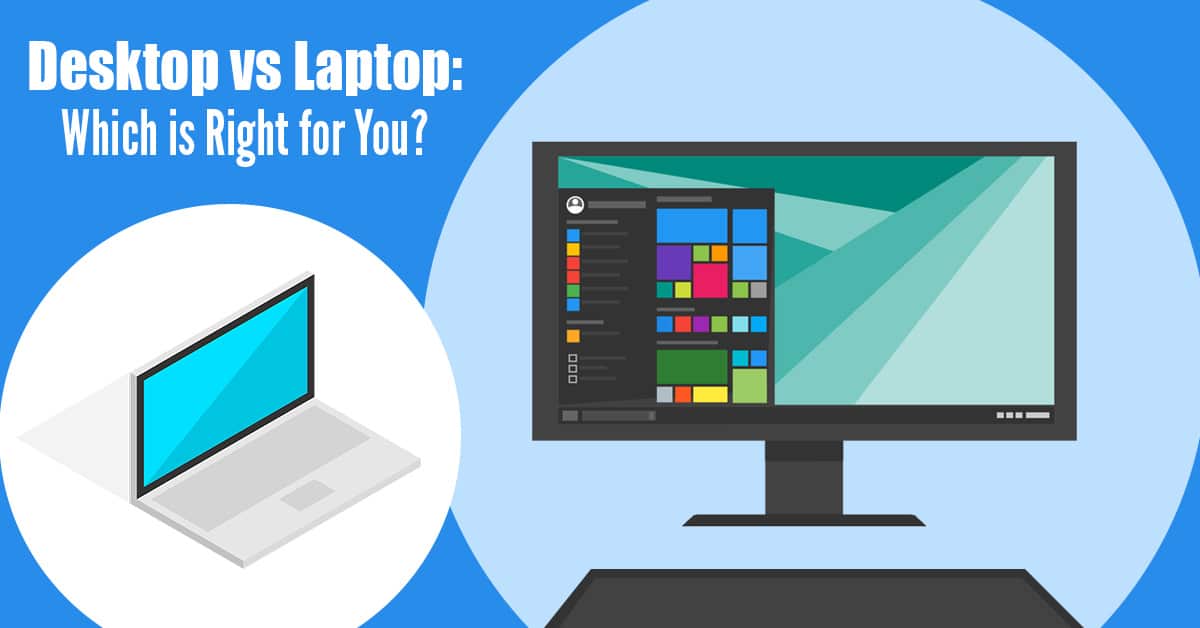
Laptops have become the go-to choice for most people in the market for a new computer. They’re sleek, portable and heavily advertised. But are they the best choice for your needs? Before you buy your next computer, take a look at these considerations – you may discover you’ve been dreaming of a desktop all along!
How portable do you need it to be?
Hands down, laptops are easier to move around than a desktop. You can pick them up, pop them into a backpack and away you go. That doesn’t mean desktops are bolted to the floor, just that they’re not designed to take on holidays or go with you to the local cafe. With that portability though, comes a trade-off: thin and light means your computer performance takes a hit. The more powerful your laptop, the bigger and heavier it is, and you won’t enjoy lugging that weight around all day. If that’s got you leaning towards an ultra-portable, consider this: The smaller and lighter your laptop is, the weaker it is. In fact, some laptops struggle to run the most basic apps. Fortunately, when you do choose a desktop, cloud technology means your data is mobile, even if your main computer isn’t.
What balance of power and price do you need?
The bottom line here is that a desktop will always give you more power for less money. Their larger cases allow for bigger and better components, with more effective systems to avoid overheating. Even the most powerful laptop is going to be hotter than its desktop equivalent, and much noisier too. If you’re using power-hungry software like games or video editing, we recommend choosing a desktop. The heat control alone is worth it as frequently overheated laptops don’t survive long.
Desired screen size
As laptops are designed to be portable, screen sizes are usually small, around 11-15”. Larger, more powerful laptops often go up to 17”. Desktop monitors however, start at 17” and average at 22”. These larger sizes give you more space to work in, options to tile your applications and multi-task, and even sit back and watch an HD (or even 4K) movie. They also allow for nice big text and images, with a better ability to choose the visual experience that suits your needs. If you’re after a large screen size without the actual desktop computer, all-in-one PCs are a great option with many offering impressive screen quality.
Your working comfort
Many people buy a laptop only to get home and find it’s a pain in the neck – literally! The traditional laptop design means you’re always looking down at the screen which can put a strain on your neck. You can try to raise the screen by placing the laptop on a stand, but then the keyboard is out of easy reach. The smaller keyboards and touchpad designs may also leave you more prone to repetitive strain injuries. Many people end up connecting their laptops to external monitors, keyboards and mice, simply so they can work in comfort. Desktop computers on the other hand, allow you to create the perfect working environment for your needs and even cater for other family members. Monitors are usually height adjustable, keyboards and mice are wireless, and you’re able to place the desktop on the floor out of the way. If you’re on your computer for more than short bursts, your body will appreciate you choosing a desktop.
Are you looking for flexibility?
When you choose a laptop computer, it’s like ordering from a set menu. You get this brand, in this design, with these specifications. Changing out parts for repair or upgrade can be difficult and expensive as there’s not a spare inch of space. Some parts are extremely hard to get to, which can turn a simple swap into a dealbreaker. The extra space inside a desktop gives infinite flexibility for upgrades over time and fast repairs. This means you’re able to easily pop in more powerful components for a fraction of the price and extend the life of your computer by years.
When your computer is acting up or driving you crazy, the absolute last thing you want to do is lug it down to the local repair shop. So many cables. So many connections. And why is it suddenly so heavy? It’s stressful just thinking about it! Fortunately, tech support has come a long way in recent years and you now have another option: remote access support.
Just like it sounds, one of our experts will connect to your computer through the internet and fix the problem. You can even watch the entire process on the screen or step away and we’ll call you when the problem is fixed. As long as the computer starts and has a working internet connection, you can simply put your feet up and watch the show! Remote support isn’t just a new technology that lets you stay in your PJs for longer, it’s a better way to approach a huge range of issues, with some pretty great benefits.
High fix rate: While it does sound impossibly futuristic, around 90% of problems can be solved this way, quickly and efficiently. We’re sure you’ve been on the frustrating end of a call-center style support session at least once and can guarantee – remote support is nothing like that. Our technicians don’t ask you to click a hundred buttons and read the screen back, they simply identify the issue and fix it for you there and then.
Location independent: For some people, the best part of remote support is that it doesn’t matter where YOU are either. You could be away on holiday with your laptop, at home with the kids, or under 6 foot of snow in a record-breaking blizzard, and our remote techs can still fix your computer. Fortunately, your computer loves staying where it is. They’re actually more likely to have issues when they’re moved around a lot, so this is the perfect solution. There’s no need to pack anything up, drive across town to drop off and then back again for pickup a week later. Our technicians know you have better things to do, and will remote support you in any way they can.
Complete privacy: Remember how you can watch the technicians move things around the screen? There’s no better way to know your privacy is protected than to see exactly what’s happening. Unless they’ve identified them as the issue, our experts won’t go anywhere near your private files and photos. You don’t even need to move them to a folder marked ‘private’, our technicians are laser-focused on getting you going again and that’s all.
You’re in control: Our technicians can’t access your system unless you allow us to. In fact, we need you to download a special piece of software before our technicians can do anything. Then we call via phone to arrange a time for us to access the computer. If you don’t want to watch and just want it done, perhaps while you’re at work, we can do that too. We’re here to get your computer issues solved, on your terms.
Next time your computer is misbehaving, or you need help setting up a new device or program, let us know. We’ll be able to jump in and get your system moving again without you leaving the house. Our remote support technicians can save you a lot of time and money, not to mention frustration. It’s never been easier to get expert help for your computer issues.
Visit our remote support portal HERE to request a remote support session!
Give us a call today at (651) 456-8655 to get started, or visit our Contact page.
We use cookies to ensure that we give you the best experience on our website. If you continue to use this site we will assume that you are happy with it.




Recent Comments